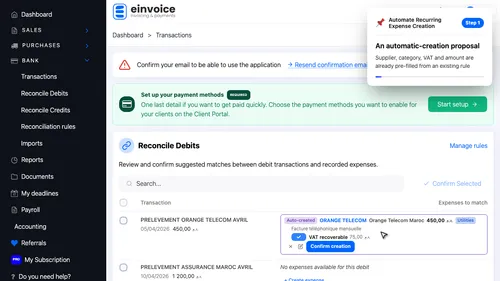
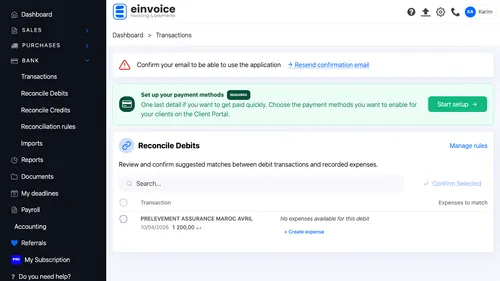
1 An automatic-creation proposal An automatic-creation proposal. Supplier, category, V A T and amount are already pre-filled from an existing rule. ▾ ▶ 0:13
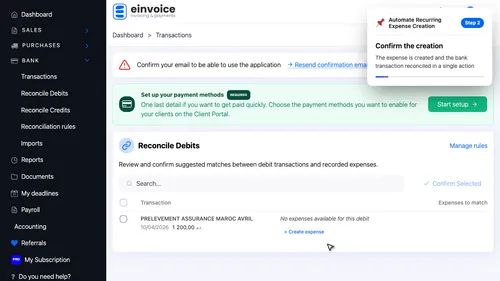
2 Confirm the creation Confirm the creation. The expense is created and the bank transaction reconciled in a single action ▾ ▶ 0:24
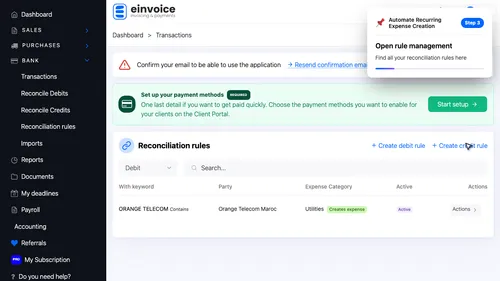
3 Open rule management Open rule management. Find all your reconciliation rules here ▾ ▶ 0:31
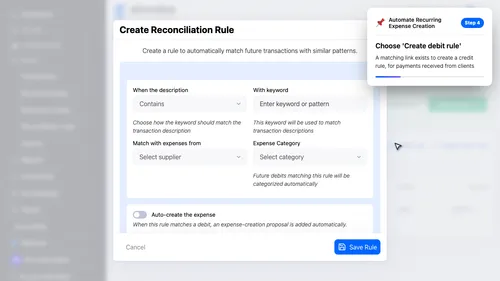
4 Choose 'Create debit rule' Choose 'Create debit rule'. A matching link exists to create a credit rule, for payments received from clients ▾ ▶ 0:36
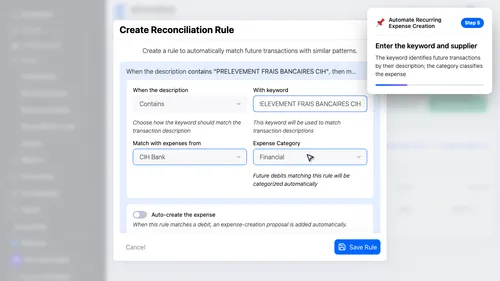
5 Enter the keyword and supplier Enter the keyword and supplier. The keyword identifies future transactions by their description; the category classifies the expense ▾ ▶ 0:45
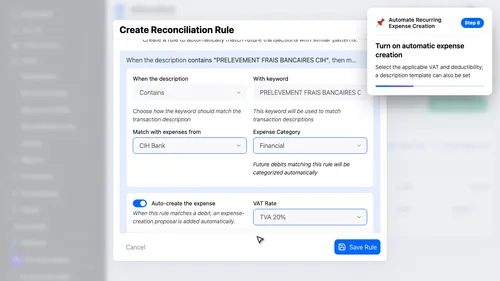
6 Turn on automatic expense creation Turn on automatic expense creation. Select the applicable V A T and deductibility; a description template can also be set. ▾ ▶ 0:57
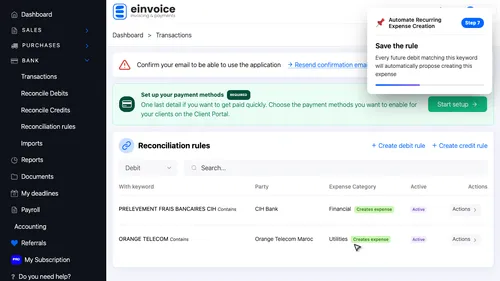
7 Save the rule Save the rule. Every future debit matching this keyword will automatically propose creating this expense ▾ ▶ 1:10
What If No Rule Exists Yet?. Create the expense manually as usual — the app will then offer to save a rule from it.
8 Return to the debit list Return to the debit list. Another recurring debit is still waiting for a match ▾ ▶ 1:25
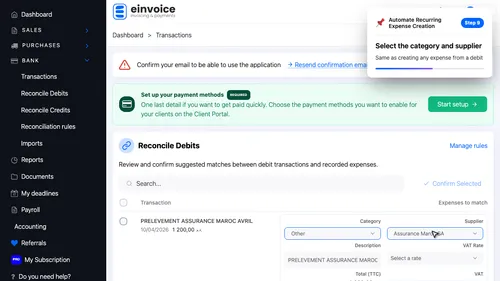
9 Select the category and supplier Select the category and supplier. Same as creating any expense from a debit ▾ ▶ 1:31
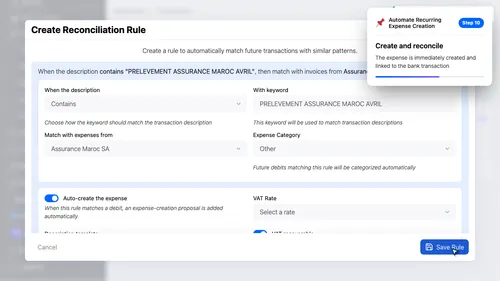
10 Create and reconcile Create and reconcile. The expense is immediately created and linked to the bank transaction ▾ ▶ 1:41
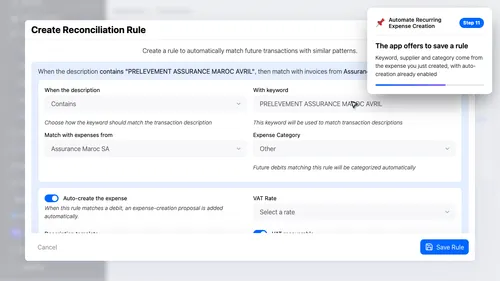
11 The app offers to save a rule The app offers to save a rule. Keyword, supplier and category come from the expense you just created, with auto-creation already enabled ▾ ▶ 1:48
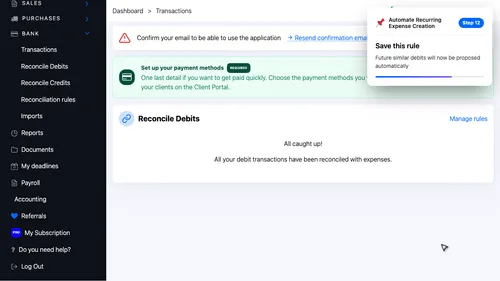
12 Save this rule Save this rule. Future similar debits will now be proposed automatically ▾ ▶ 2:00
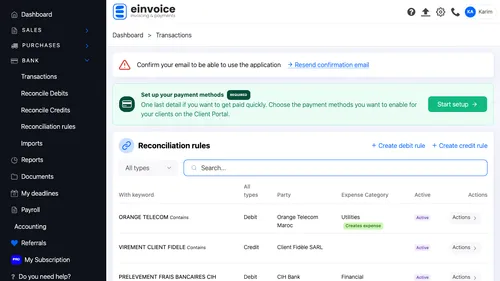
Manage All Your Rules. Search, filter, activate, edit or delete your reconciliation rules from a dedicated page.
13 Search for a rule Search for a rule. Search filters instantly by keyword ▾ ▶ 2:15
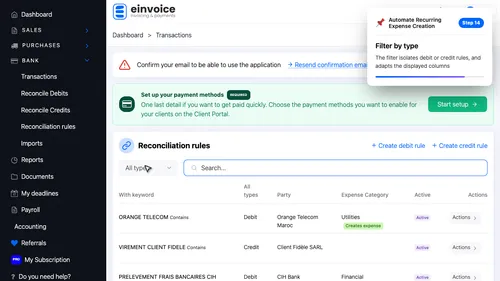
14 Filter by type Filter by type. The filter isolates debit or credit rules, and adapts the displayed columns ▾ ▶ 2:19
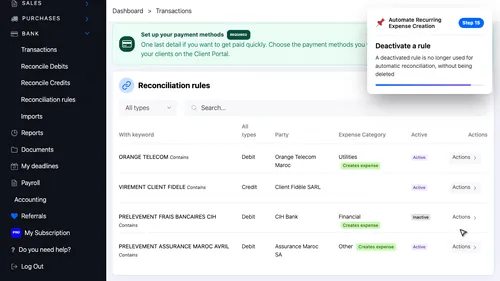
15 Deactivate a rule Deactivate a rule. A deactivated rule is no longer used for automatic reconciliation, without being deleted ▾ ▶ 2:27
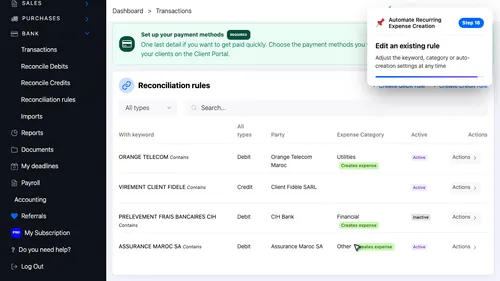
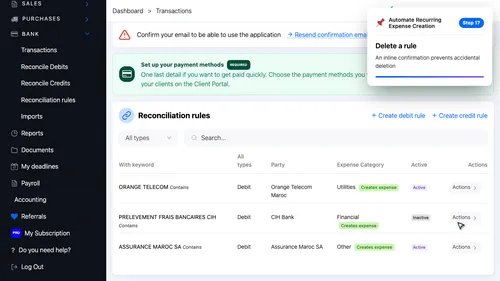
16 Edit an existing rule Edit an existing rule. Adjust the keyword, category or auto-creation settings at any time ▾ ▶ 2:37
17 Delete a rule Delete a rule. An inline confirmation prevents accidental deletion ▾ ▶ 2:52